|
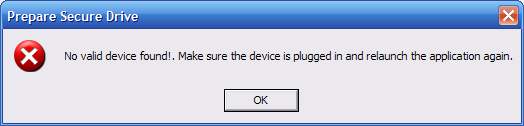
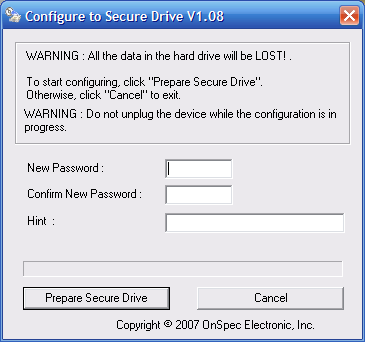
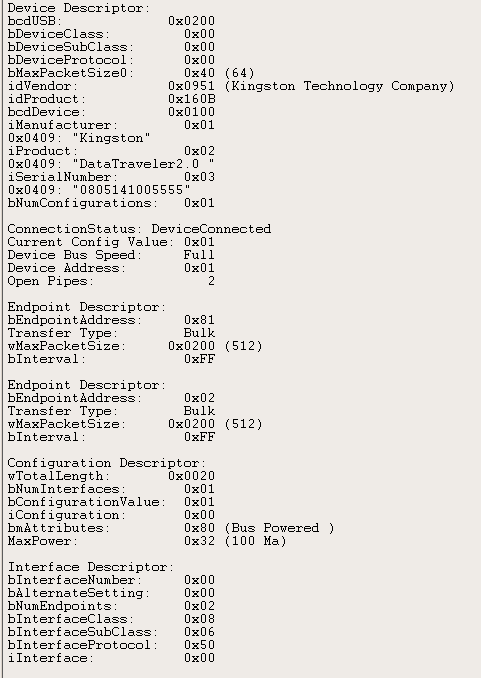
AcomData E5 HybridDrive External Hard Drive DisassemblyI managed to change the disk on mine. I have the pata version of the enclosure. Acomdata doesn't have documentation about replacing the disk but I looked up the controller chip (OnSpec xSil 251) and found this site: http://www.techsupportlive.com/. Go to the download section and get the NOMAD desktop installer. There's also a switch utility to format the disk to a single hdd partition. ccl Thanks, ccl. I'm going to try the software on that site and see if I can swap other SATA drives into my enclosure. Chieh Cheng Is it possible to put this drive in another enclosure? My current one seems to have failed to operate at usb 2.0. It's not the cable, nor my system since it does the same thing on two other computers. I'm guessing the connector was somehow messed up. Onikage Yes, you can. But you'll have to reformat the drive. And then the drive will not work with the Acomdata enclosure any more. But the software the ccl mentioned able seems to be able to convert the Acomdata enclosure to a regular enclosure and vise-versa. I just haven't had time to try it out yet. Chieh Cheng a format? Darn, the point is to save my data :) I guess I'll have to think about this one. Onikage Well, I downloaded the "xSil251 Switch HDD to CD+HDD_Nomad Mobile Desktop_V1.04_091007" from the site that ccl show above. I double-clicked the "Shd2cdhd.exe" and the following error message: "No valid device found!. Make sure the device is plugged in and relaunch the application again." That's great . . . I looked at the Shd2cdhd.ini file and saw about 13 USB vendors and identifications. So maybe I need to update it with the vendor information from my drive. I was about to download Snoopy Pro, when I noticed the USBView from ccl's link above. Man, that's a handy utility, you ought to get it, too. Based on the information displayed, the vendor ID and the product ID are all listed in the ini file . . . Maybe it's cuz I have the drive connected to a hub. I guess I'll try connecting it directly to the computer and see . . . Attached Image: Chieh Cheng Viola! That is exactly what happened. The drive has to be connected directly to your computer. I'm going through the process of converting it to a simple USB case now. Attached is the USBView.exe utility I mentioned above. Chieh Cheng Well, I was quite disappointed with the utility, instead of letting me switch to standard HDD, it just reformatted it and prepped it for the Secure CD+HDD that I wanted to get rid of. The screen shot belows shows the preparation utility. Attached Image: Chieh Cheng I looked carefully at the Shd2cdhd.ini file again and found the following section:
Looks like that is the key. So I changed "PREPAREHDD=" to "PREPAREHDD=yes" and tried again. This time, I got the following error message. "Unable to read the HDDVID in the section BINFILE in path "C:\TRANSFER\xSil251 Switch HDD to CD+HDD_Nomad Mobile Desktop_V1.04_091007Shd2cdhd.INI." Damn! It's so close, the utility didn't include the HDD bin file and the configuration. Looking at the configuration file closely, the following is what it needs:
Attached Image: Chieh Cheng Ok, I found it. You have to get the CD to HDD Convertor, which unzips into "xSil251 Switch CD+HDD to HDD 3.5_Toshiba_V1.02_041307". Then run Shd2cdhd.exe and confirm three times. Now my Acomdata enclosure is a normal hard disk enclosure! Chieh Cheng Question - I was able to convert the enclosure to a normal HDD enclosure. Problem I'm having is when my system goes into standby or is powered down and then powered back up, the system does not see the drive. I have to unplug the HDD and the plug it back in. The the system sees the drive. Any suggestions? FYI - I'm running an older Dell Inspiron 9100 with an IDE drive. The drive I'm struggling with is an SATA drive. Something tells me that the system cannot support an SATA drive on power up. Hope I'm wrong :-( Any guidance would be greatly appreciated. Thanks, Steve Steve I have a the 500gb version and the enclosure itself died. The hard drive is still good when I connect it directly to computer but the enclosure is unable to be recognized by xp. I am curious to try the CD to HDD Converter before purchase a new enclosure. Pls help if you have any idea. Donnie Le I know this may sound weird ... but is there a way to change the SHD2CDHD.exe so it can work with other devices besides the 13 it states, I have a kingston Thumbdrive I would like to put that in. I mean i never saw the point behind putting it in a 300GB hard drive when i keep mostly music, pics and movies there, and rather have it in a thumb drive where i keep my documents and personal files. i use the USBview.exe and the VID is 0x0951 and the PID is 0x160B Kingston DataTraveler2.0 David You can recover NTFS partitions with Diskinternals Partition recovery, or if you are very smart you can use gparted or equivalent on linux to create a new partition (if you know what numbers to use) without trashing the files on the drive. My drive power supply appears to be dead, lights on, nobody home. I at some point either partitioned it into 2 or 3 drives, of which the last drive was NTFS. Diskinternals found it, but not the other partitions so I started poking around and copied the first 800mb or so of the raw disk over to a working drive and noticed that the first 128MB or so appears to be a literal iso9660 image. If you really want to recover your files, it looks like the extent of "encryption" done by the drive enclosure is to hide the partition table. That's about as secure hiding your key above the door. Kisai Many thanks for this post ! I bought a acomdata enclosure and used a Seagate 7200.10 drive from a different enclosure that went bad on me (actually the usb connector broke...long story) and it would only mount as a CD drive. i ran the utility that you posted here and now it works. I assume the old enclusre had some encryption capability that stored info into a partition on the drive ? Anyway, it works now. There was NO documentation or software with the enclosure that would of led me to a fix and thier help desk number has been disconnected. This was the only post on the internet that I found, so thanks again for being a life saver ! ...ed Ed Williams Hi, I'm having similar problems to one of the users above. The harddrive is not able to connect at USB 2.0 on my computer and I've tried it on a number of other computers too. Does anyone know how to fix this issue? Thanks Manni "CD to HDD Converter" worked for me with a acomadata external hdd that used to be recognized as a cd. now it works as a regular external hdd sergio Thanks for your writeup. I happen to have the same issue, where my drive is good but the acomdata enclosure is faulty. You mentioned you were able to access your acomdata drive via usb with the tool you linked to. Did you have to reformat the drive? I want to keep the data on it. I am concerned though, it has 3 partitions. Elvis McNeely Yes. It will reformat your drive. You have to copy your data off first. Chieh Cheng I managed to recover the disk partition table using TestDisk 6.11(http://www.cgsecurity.org/wiki/TestDisk) under Linux. TestDisk is a open source tool that runs on variety of OS, including Windows, you should be able to test yourself. 1. Put your drive in another external drive enclosure (USB, Firewire, eSATA, as long as your OS supports it), connect to your computer, and power it up. If you want to write the correct information to partition table, so you can mount it later, it might be trickier. I have problem to get Linux mount the NTFS partition, as it complained the last sector in file system is beyond the last sector in partition. I managed to trick the system by setting last cylinder to 1 beyond the actual number. I was able to mount it, and copy all the data out. but I think I may encounter problem when disk is close to full. It's much safer to copy the data out first, then repartition and reformat the drive. Patrick Zhang For those who wants to update partition table so you can mount the recovered disk on other computers, here's what I did, use with caution, you can easily corrupt the disk. The instruction is for Linux, since I only did it on Linux. You're done with partition, you should be able to test mounting it. But before you can mount, you need to force Linux to rescan device and create device files. Here's the command I used, your device path will be different, but it's easy to figure out. The first command is to ask Linux to remove the drive from device files, and the second force Linux to rescan and recreate device files: After this, you should see /dev/sde1 (you device name could be a little different), and mount it: Still, I won't completely trust this partition. I'd copy data out, then repartition and reformat the drive. But if you're bold enough, just keep using it! If you have any question, I'll be glad to help, just email me. echo Patrick Zhang Well,I have the same issue as many of you that my Acomdata external just dropped dead without warning.Originally I wished to copy out my old data but now it seems not an option so I tried "Switch CD+HDD to HDD". The test has failed as it said. I would greatly appreciate anyone that has experiences on these issue to share your opinions.Thanks in adavance. Peter AcomData HybridDrive HDEUHE-501, also called '3.5" Hard Drive Enclosure'. Got it with a 320 GB hard drive already installed. Had the usual virtual CD-ROM as the first partition and "HD PART" as the second. Running Windows XP. _FIRST FAILURE_ _SECOND FAILURE_ Partition type is FAT32 Steps to fix partition table: Success! Hard drive is back online and mounted. No file recovery needed. MrBoboFace My AcomData HybridDrive HDEUHE-501 was in fact a hitachi 320GB disk drive. I had the exact same problems as MrBoboFace. I disassembled the enclosure, plugged the IDE drive and used TestDrive to repair the file partition. Now works as a charm, and got my precious prcious data back, thanks guys. Laurent C�t� As to what MrBoboFace mentioned on July 29th, I would like to know what the "start at" and "end at" cylinder, head, and sector would be on the Acomdata 500gb hybrid drive. I assume it would not be the same as the 320gb version. Any help would be appreciated. Mario Scratch last post, just figured it all out. Thank you for all the posts. If anyone has the 500gb hybrid drive from Acomdata info goes as follows for using TestDisk (while following MrBoboFace's instructions) Partition: Fat32 Mario Hi, I have the same problem with Acomdata 500G HDD which I bought in 2007, I put it in storage for a long time and when I started using it again it was not recognized at all, so I took it apart and found WD blue caviar, and like others I have been hijacked by this NOMAD REDEMPTION...I know its late but if not for this comment page I might be able to pay huge ransom for the important files if I took to those data recovery specialist...what I did was I tried bobo's method but it did not work for me...so what I did was from "None" partition..I chose the P and found all the files(which was in white, the others which I don't know what it was in RED) I just used "c" for copy and put it in the proper drive in my computer. After that I will reformat the HD so I can use it for future purpose...hope this helps... Marc Hello, Disk /dev/sdf - 500 GB / 465 GiB - CHS 60801 255 63 I want to bypass the virtual CD partition to regain access to family movies I had transferred to this hard drive but want to be sure I don't mess this up! kephafan Update: kephafan Thanks to everyone who contributed to this page - I've been trying to salvage a friend's drive for a few months now and was baffled about my failures until I finally realized this drive was being managed by Acomdata's stupid custom drivers. I was unsuccessful with testdisk until finding this thread, the trick being to select the 'None' type for the partition. As I write I'm copying ~170GB of data off this thing! For anyone else who stumbles upon this, fdisk under Linux wasn't letting me type in CHS numbers properly, but switching into LBA mode (u command) and doing some math to come up with sectors worked. For the 500gb drive, with the data partition found by testdisk as FAT32, start C/H/S of 16/59/20 and end C/H/S of 60801/ 79/54 this winds up being: Start sector: 260776 ((16 * 255*63) + (59 * 63) + (20 - 1)) Bob M Today I purchased and E5,320GB, appears brand new, at thrift shop for $5! First thing I did was plug in to Win 7 64GB desktop. No go. It tried to install as a CD drive but really nothing worked. I never got to the part where you can work the password file. I unplugged and took it to my Win XP laptop and it worked just as advertised. I next used to convert CDHDD to HDD convert utility mentioned above. It worked just fine. Then I carried the drive back to the Win7 64-bit machine and the hard drive installed perfectly as a Toshiba USB 2.0 HDD. One issue/question -- The partition info now shows the drive as being 298.02 GB? Where is the 320GB listed on the box. Is this because the old CD partition is still there but no longer visible? OldPilot OldPilot, that's the typical old manufacturer trick of redefining one megabyte (MB) is equal to 1,000,000 bytes and one gigabyte is 1,000,000,000. In computer science, one megabyte is equal to 1,048,576 bytes and one gigabyte is equal to 1,073,741,824 bytes. If you multiply 298.02 GB by the computer science value, you will get 319.99 GB. Therefore, you will never see the "advertised" hard drive size. This is hard drive manufacturer's method of advertising a hard disk bigger than it really is in a competitive market. Mel Hello, xSil251 Switch HDD to CD+HDD_Nomad Mobile Desktop_V1.04_091007 The site "www.techsupportlive.com" no longer works and I urgently need them. thank you so much! fulvio
Did your message disappear? Read the Forums FAQ. TrackBackTrackBack only accepted from WebSite-X Suite web sites. Do not submit TrackBacks from other sites.
Title: Learn To Build Your Own External Hard Drive Enclosure Add Comment
Messages, files, and images copyright by respective owners. |
Articles
|
Wiki
183 Users Online
Get Our

|
|
Copyright © 2004 - 2025. All Rights Reserved. |
|

 Related Links
|
Related Links
|